
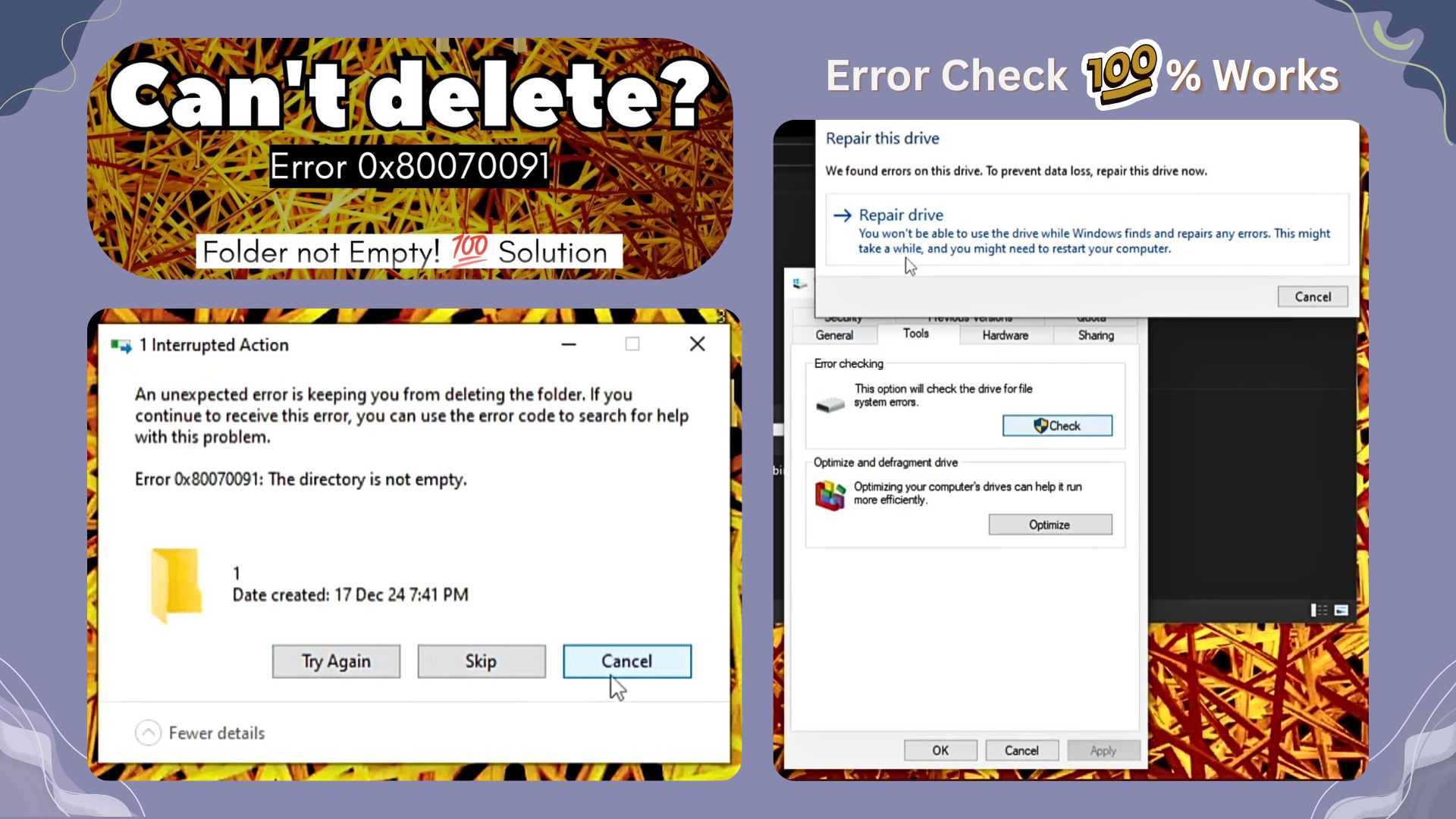
If you’ve ever tried to delete a folder in Windows and were greeted by the error message:
“Error 0x80070091: The directory is not empty”
…you know how frustrating it can be. This issue is common, especially with backup folders, external drives, or the Windows.old folder after an OS update. The good news? You can fix it — and this guide shows you how.
🎥 Watch the Video Tutorial
For a step-by-step walkthrough, watch the full video:
https://youtu.be/1khJnp4WY18
What Causes the Error 0x80070091?
This error usually occurs because:
- The folder is corrupted or partially deleted
- A background process is locking it
- You don’t have proper permissions
- The file system has inconsistencies
The folder may appear empty, but something in the background is keeping it from being deleted.
✅ Methods to Fix the Issue
Here are a few proven methods to delete those stubborn folders.
1. Use Command Prompt (Admin)
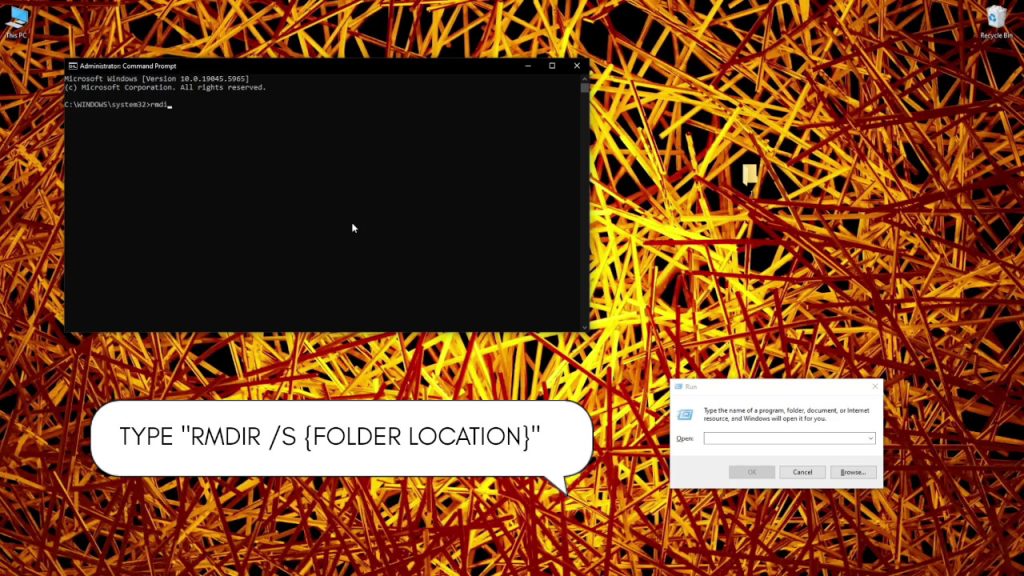
One of the quickest solutions is to use the Command Line:
Steps:
- Press
Win + Xand select Command Prompt (Admin) or Windows Terminal (Admin) - Type the following command:
rmdir /s /q "C:\Path\To\Folder"
/sremoves all subfolders and files/qruns the operation quietly without confirmation prompts
Replace C:\Path\To\Folder with the actual path to the folder you’re trying to delete.
2. Take Ownership of the Folder
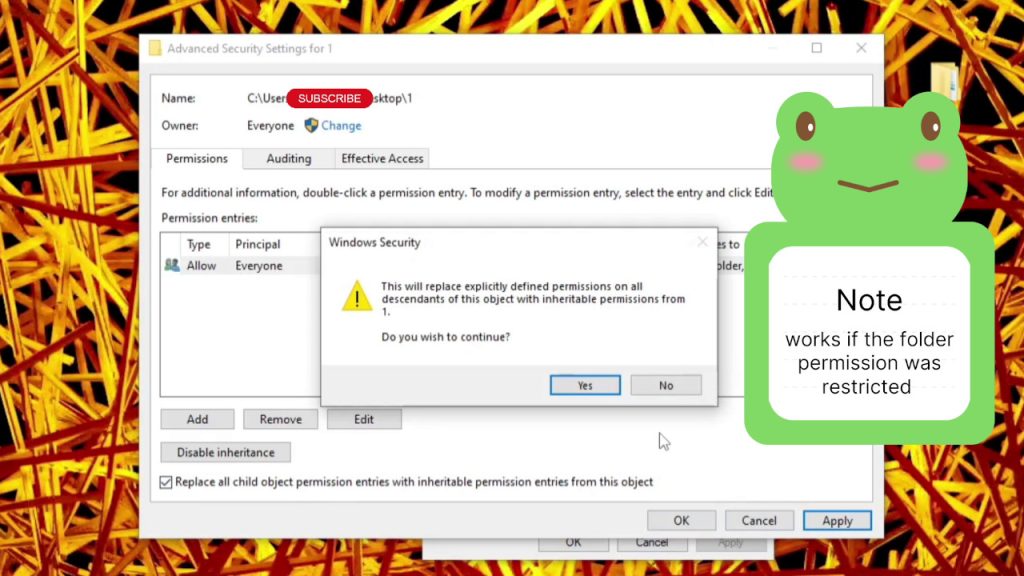
If you’re getting access denied errors, ownership might be the issue.
Steps:
- Right-click the folder > Properties
- Go to Security > Advanced
- Click Change next to the Owner field
- Enter your username and press OK
- Check Replace owner on subcontainers and objects
- Apply and exit, then try deleting the folder
3. Boot into Safe Mode
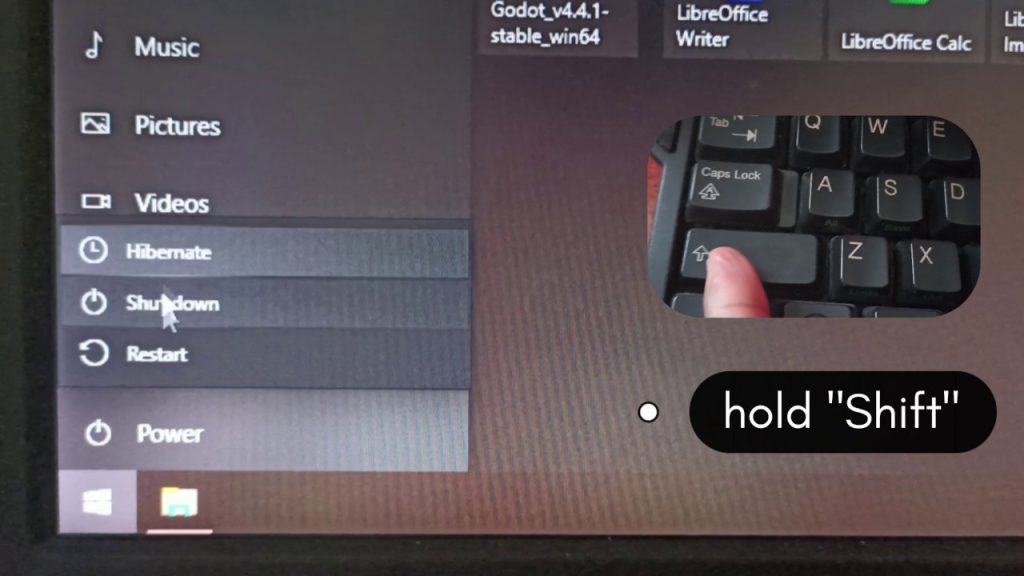
If a system process is locking the folder, Safe Mode can help.
Steps:
- Press and hold
Shift, click onrestart, and don’t release ‘Shift’ until you see “Choose an option” - Press Troubleshoot
- Press Advanced options
- Press Startup Settings > Restart
- Pick Safe boot from the list
Alternative Steps:
- Press
Win + R, typemsconfig, and press Enter - Go to the Boot tab and check Safe boot > Minimal
- Restart your PC
- Try deleting the folder again
After you’re done, go back to msconfig and uncheck Safe boot to return to normal mode.
4. Use PowerShell
PowerShell provides more control than CMD in some scenarios:
Remove-Item -Path "C:\Path\To\Folder" -Recurse -Force
5. Run CHKDSK
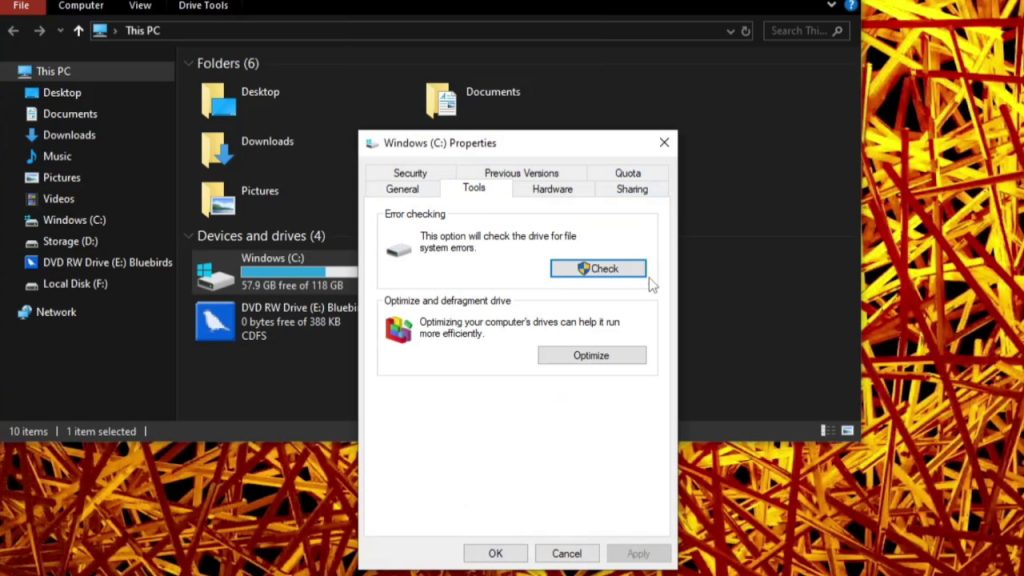
Corrupted file systems can prevent deletion. Use CHKDSK to fix errors.
Steps:
- Open Command Prompt as Admin
- Type:
chkdsk /f /r X:
Replace X: with the correct drive letter.
👀 Still Stuck?
If none of the above works:
- Try renaming the folder and rebooting
- Scan your system for malware
🤔 Final Tips
- Always double-check folders before deletion
- Backup important data before using force-delete commands
- Be extra cautious when working with system or external drives
🎥 Watch the Video for Full Demonstration
Click below to watch the full tutorial and see these steps in action:
👉 https://youtu.be/1khJnp4WY18
If this guide helped you, please like the video, subscribe, and share it with someone who needs it!
#WindowsFix #Error0x80070091 #FolderNotDeleting #WindowsTips #TechHelp #CMD #AnzeniDesign


Leave a Reply to peso99 Cancel reply