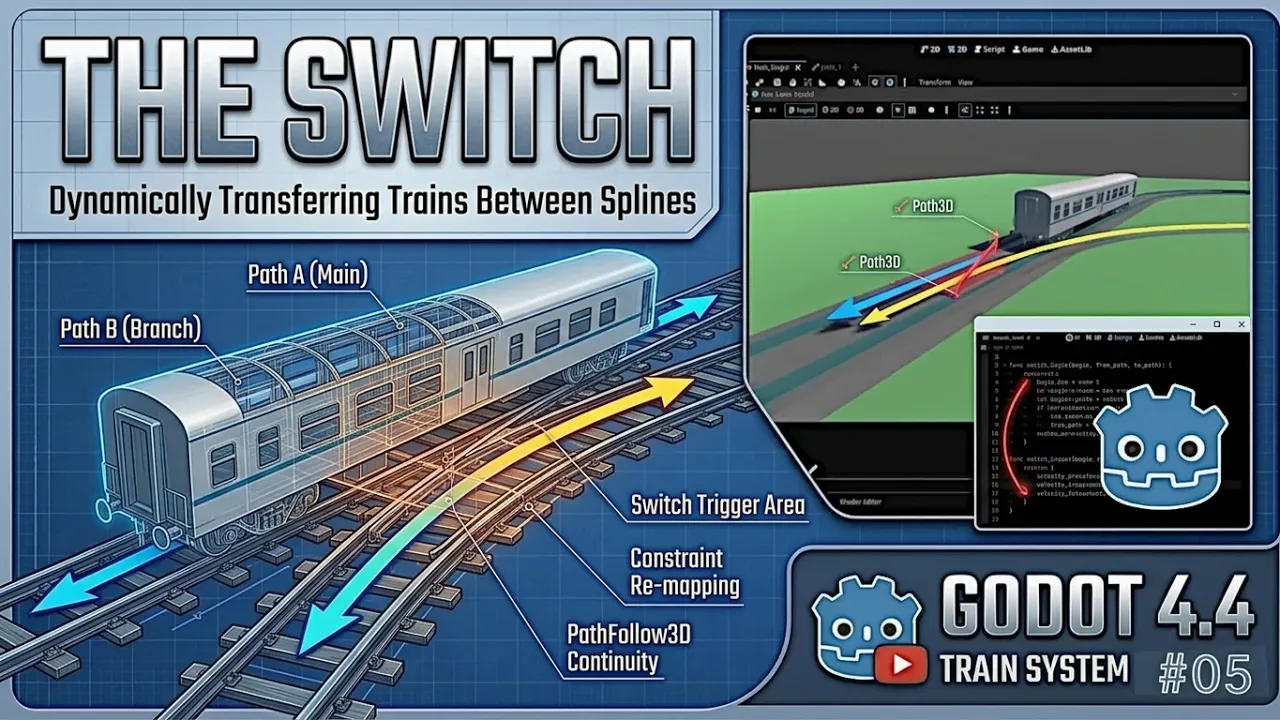
Moving along a single, linear track is a great milestone, but any real railway simulation requires a proper network. Trains need to navigate junctions, switch paths dynamically, and choose branching routes without breaking the underlying physics or throwing spatial errors.
In this tutorial, we tackle one of the most crucial mechanics for any rail game in Godot 4.4.1: switching a train smoothly between two separate splines (Path3D) on the fly.
🛤️ Step 1: Spline Expansion & Adding Secondary Tracks
Before writing junction scripts, we need to build our branching geometry in the 3D scene.
- Introducing
Path2: Create a secondaryPath3Dnode branching off from your main railway line. Shape its curve control points (Ctrl+ drag) to create a smooth divergence or siding. - Track Mesh Alignment: Lay out your railroad track meshes along both paths so the visual geometry matches the mathematical splines where the switch occurs.
🏗️ Step 2: Structural Cleanup & Hierarchy Refinement
To support multi-path transitions, our scene architecture needs to be modular enough to handle dynamic re-parenting and re-mapping.
- Coach & Bogie Refinement: Clean up your coach body and bogie hierarchies. Ensure that rotation anchors and transform pivots don’t rely on hardcoded path references.
- Decoupling Controllers: Separate your movement input controller from the path-following logic so the train can query which track it is currently assigned to.
🔀 Step 3: Implementing Junction Logic & Switch Triggers
Next, we establish the logic that determines track selection and manages switch states.
- Switch Triggers & Indicators: Set up trigger zones or UI/controller inputs that represent the track switch. Add a visual junction indicator to show players whether the switch is set to the main line or the siding.
- Controller Updates: Script your main train controller to handle track selection dynamically based on player input or automated signals.
GDScript
# Example concept: Switching active path references in the controller
enum Track { MAIN, SIDING }
@export var current_track: Track = Track.MAIN

func switch_tracks(target_track: Track) -> void:
    current_track = target_track
    update_active_path_node()
🔄 Step 4: PathFollow3D Re-mapping & Spatial Continuity
The hardest part of track switching is preventing the train from teleporting, jittering, or breaking its momentum when jumping curves.
- Re-mapping Distance Offset: When a bogie switches from
Path1toPath2, calculate its current progress ratio (distance along the curve) and map it proportionally to the entry point of the new spline. - Ensuring Continuity: Update the
PathFollow3Dnode’s remote transform or target path reference cleanly within the physics frame so spatial orientation remains unbroken.
🧪 Step 5: Final Junction Test Drive
With your secondary spline and junction logic fully wired up:
- Test the Switch: Drive your locomotive toward the junction, toggle the switch input, and verify that the front and rear bogies transition onto the new curve seamlessly.
- Verification: Watch for any sudden transform snaps or axis twists. If the transition is smooth, your modular railway network is officially ready for switches, sidings, and complex routing!
Switching Train between two splines in Godot 4.4.1 video tutorial